
In Attendease the Watch Now button seen on the main Event page and the Watch Now button available in the Schedule Blocks are configured in separate places in Attendease and work off slightly different logic.
-
Help! My Watch Now button isn't appearing!
-
What might a new attendee see? (Event Information Block)
-
How does Watch Now behave when there are sessions? (Advanced Schedule Block)
Help! My Watch Now button isn't appearing!
Here are a few things you can check quickly if the Watch Now button is not appearing as anticipated.
Is the session set to "Registered & Scheduled" instead of just "Registered"?
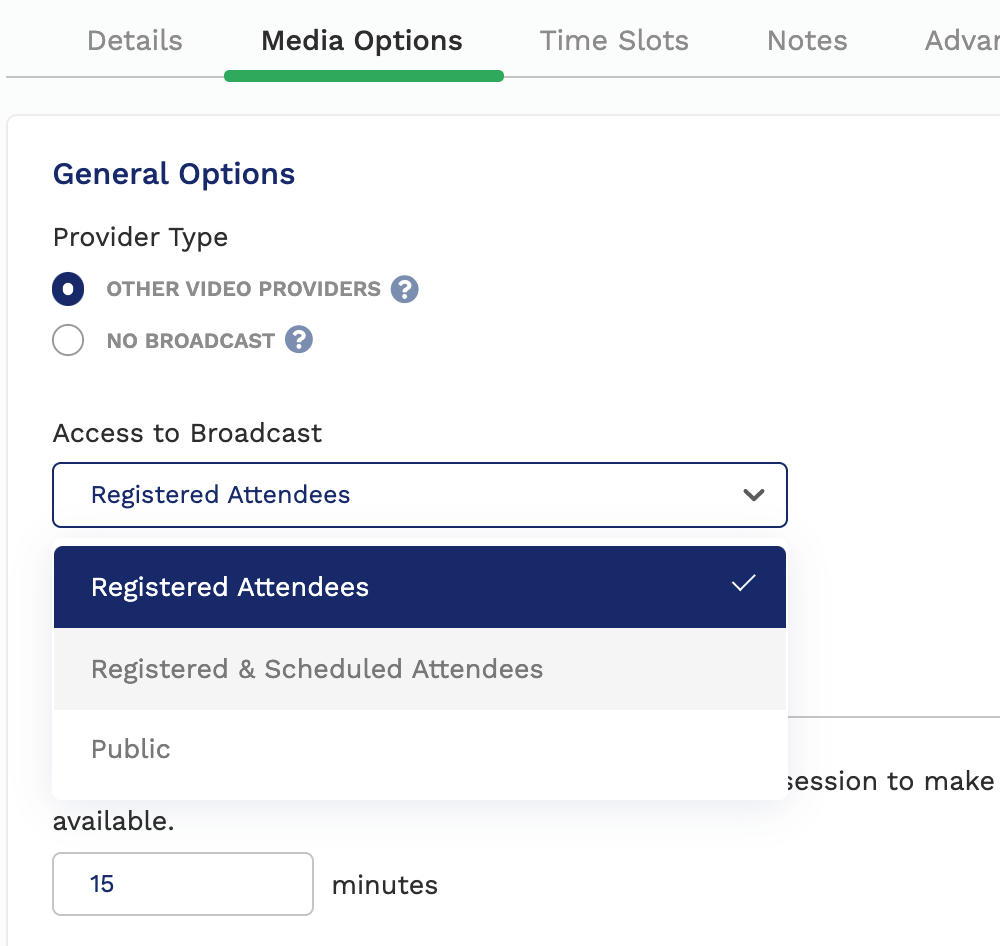
Did the attendee or user registering the complaint try refreshing their browser page?
The Watch Now button cannot update to show it is available if the page is never refreshed.
What might a new attendee see (Event Information Block)?
If you have an event that a potential customer is not registered for, they will see "Register Now" in the Event Information Block.
If the customer then registers they will see one of two things depending on the event's configuration.
If the Video URL field found in Event > General > Details is populated and the event has not yet begun, a registered user will see "Watch Now" in your button colour but slightly faded out. If they mouse over the button they will be shown a warning message that the Watch Now button is not available yet (this is controlled in the Event Information Block settings). This will be displayed regardless of whether or not there are sessions for this event.
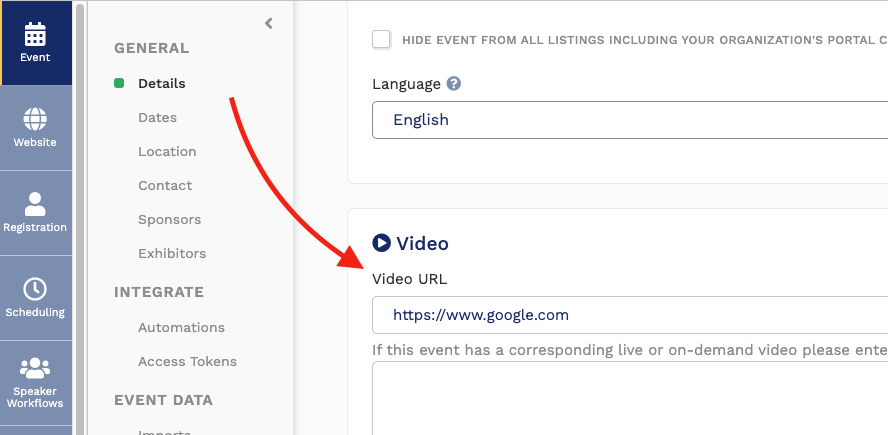
If the Video URL field found in Event > General > Details is blank and the Event they have signed up for has sessions (and none are in progress or about to start), they will see "Manage my registration" in the Event Information Block.
In the Event Information Block settings you can find options to allow the Video URL to show up earlier than the event start or persist after the event ends.
How does Watch Now behave when there are sessions (Advanced Schedule Block)?
For this section we will assume this in all cases: the Video URL in Event > General > Details is blank.
When viewing the Advanced Schedule Block, the attendee will be invited with text like "Schedule" if they are logged in and are allowed to schedule a session, or "Sign up to Schedule" if they are viewing the schedule block when not logged in. This is the default for this block.
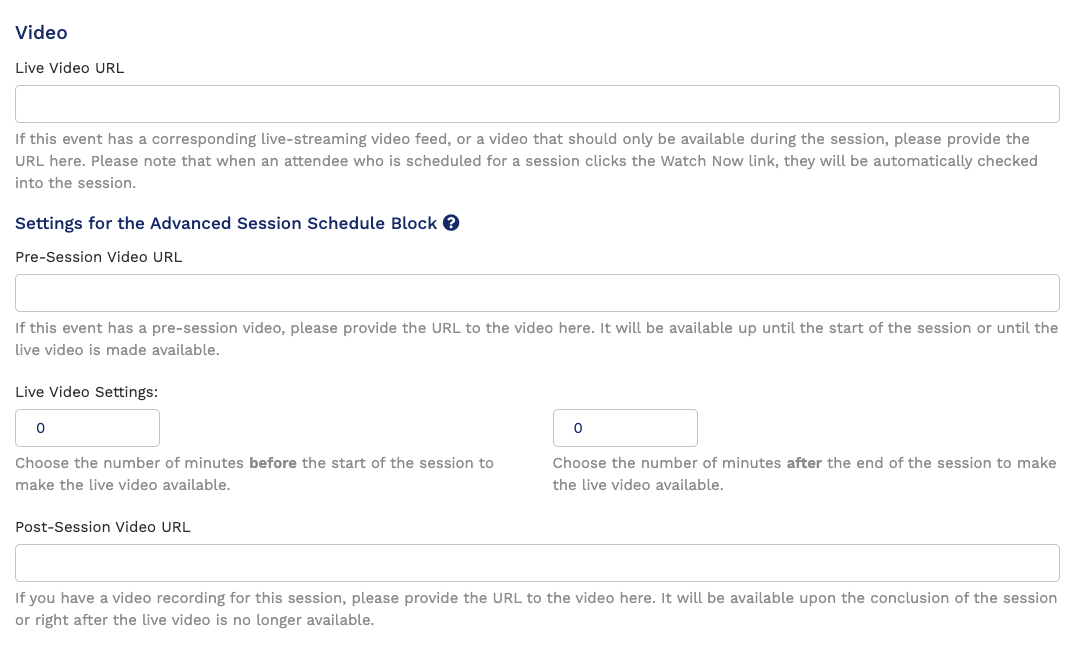
If the session has a Pre-Session Video URL then the button will display Watch Now in the Advanced Schedule Block, and clicking it will take the user to the Pre-Session Video URL location.
If the session does not have a Pre-Session Video URL, then the button will read Schedule or Sign up to Schedule.
If the session has the "Choose the number of minutes before the start of the session to make the live video available." populated with a number then the button will read Watch Now if refreshed inside that extra time taking users to the Live Video URL (not the Video URL) found in the session configuration.
If the "Choose the number of minutes before the start of the session to make the live video available." field is blank, the Live Video URL will appear only after refreshing after the start of the session.
If the event has a value in the "Choose the number of minutes after the end of the session to make the live video available." field from the session configuration, the button will continue to read "Watch Now" and take users to the Live Video URL found in the session configuration until that time expires.
There are options in the Advanced Schedule Block to determine who can see content going forward, if you want it to be public or for those who have registered.
Lastly, if the event has a value in the Post-Session Video URL after the "Choose the number of minutes after the end of the session to make the live video available." field runs out (if it is populated) then the Watch Now button will persist forever and take users to whatever is at this link.
What happens if I populate both the sessions-level Live Video URL and the event-level Video URL?
The Watch Now button on the Event Information Block will behave exactly as described in the first section of this document.
The Watch Now button within the Advanced Schedule Block will behave exactly as described in the second section of this document.
Comments
0 comments
Please sign in to leave a comment.