
You can send automatic email messages to attendees based on certain triggers that occur along their event journey.
The following triggers are available to be used to activate the "Send an Email" action, which will, in turn, send an email to the relevant attendee:
Supported Triggers
Attendee Registration and Check-in:
Attendee - Registers
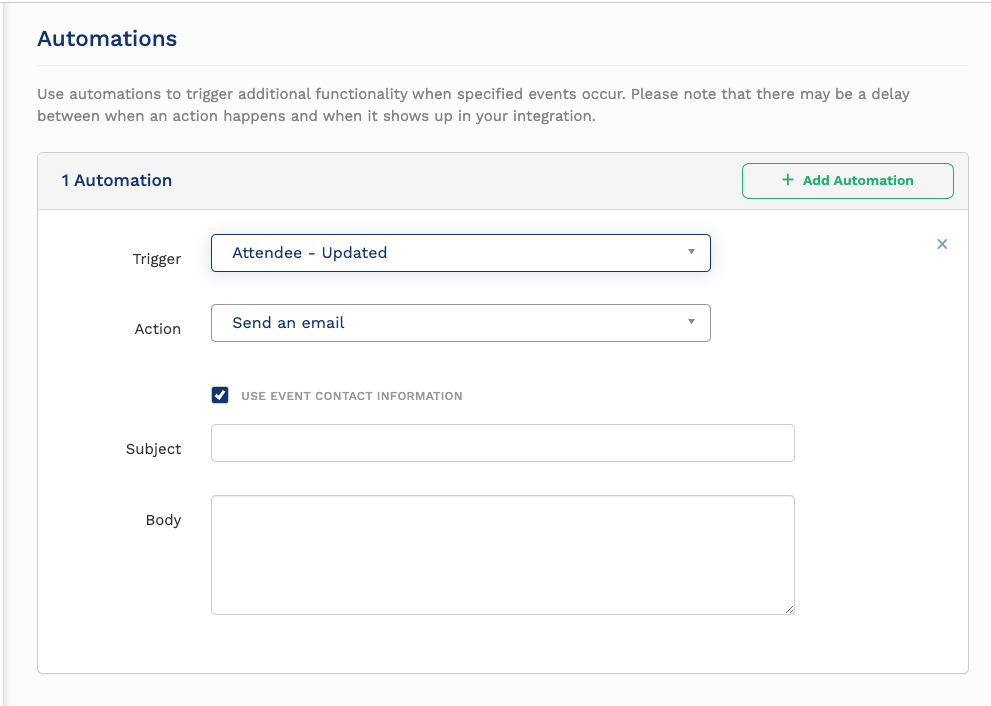
Attendee - Updated
Attendee - Cancelled
Attendee - Checked in (event or session)
Attendee - Check-in undone (event or session)
Attendee Session Scheduling and Session Waitlisting:
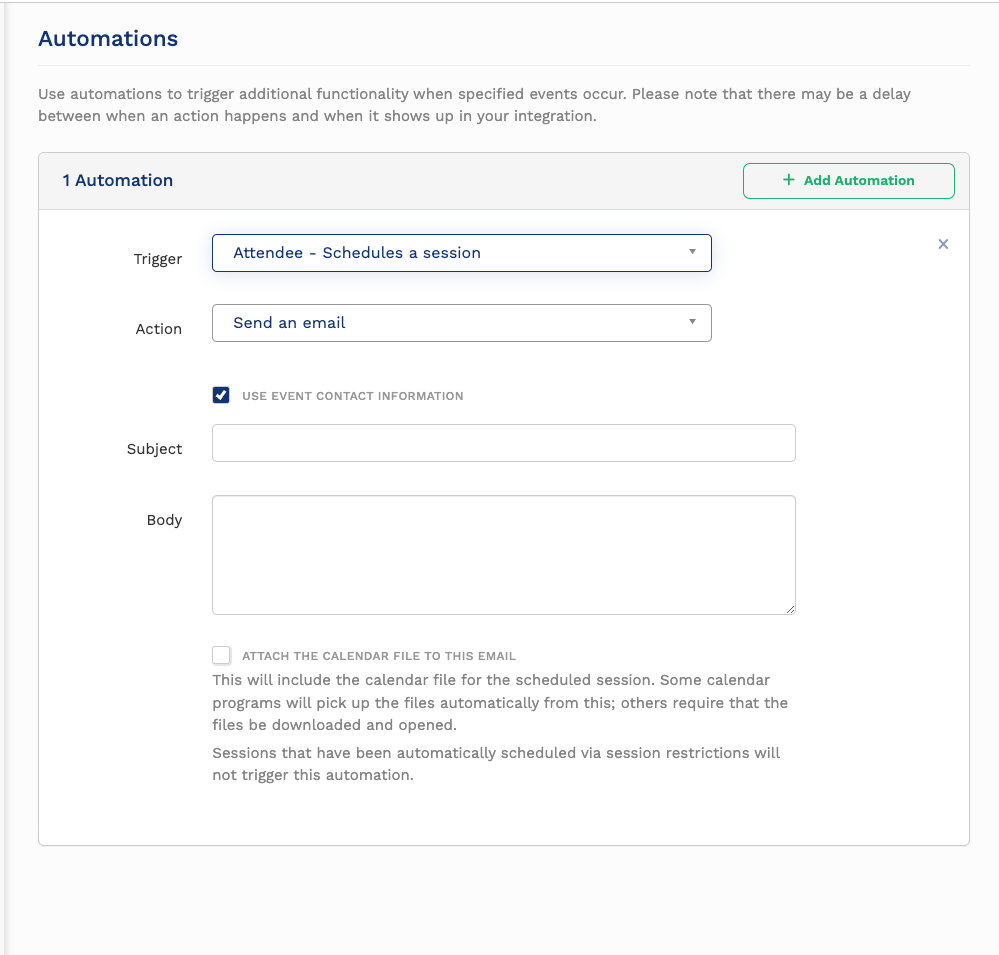
Attendee - Schedules a session (can attach Calendar File)
Attendee - Unschedules a session (can attach Calendar File)
Attendee - Added to a session waitlist
Attendee - Removed from a session waitlist
Attendee - Promoted from a session waitlist to an attendee
Adding a new Email Automation
To add a new Email Automation (you can add as many as you like):
-
In your event dashboard, navigate to Event -> Automations
-
Click "Add Automation" to add a new automation
-
Choose a Trigger from the drop-down (only the list of triggers above is supported for the "Send an email" action)
-
Choose the "Send an email" action from the "Action" dropdown
-
Configure the relevant details
-
Use Event Contact Information
-
Select this checkbox to use the From address from the Event -> Contact page
-
Deselect this checkbox and enter a custom From email and From Name for your automatic email message
-
-
Subject - The subject of your email message
-
Body - The body of your email message
-
Attach the calendar file to this email (available for the
Attendee - Schedules a sessionandAttendee - Unschedules a sessiontriggers only)-
Select this checkbox to attach a Calendar file to the email message that can be used to add the session to a personal calendar
-
-
Personalizing the Email Body
All emails can use the following placeholders to further personalize the body of the message sent to your event attendees:
#{{ first_name }} - The attendee's first name
#{{ last_name }} - The attendee's last name
#{{ email }} - The attendee's email address
#{{ attendee_qr_code }} - The attendee's QR code for onsite check-in
#{{ pass_name }} - The attendee's pass name (e.g. Event Pass)
#{{ group }} - The attendee's group name (e.g. Public)
#{{ registration_code }} - The attendee's registration code
#{{ quick_login }} - The URL to instantly login to the event website
#{{ do_not_share_quick_login }} - Disclaimer not to share the quick login
#{{ schedule_ical_subscription }} - URL to subscribe to the event calendar
If your trigger includes sessions can additionally use:
#{{ session_code }} - The session code
#{{ session_title }} - The session title
#{{ session_date }} - The session date
#{{ session_start_time }} - The session start time
#{{ session_end_time }} - The session end time
#{{ session_location }} - The session room
#{{ session_venue }} - The session venue
Here is an example for the Attendee - Checked in trigger :
Dear #{{ first_name }},

Thanks for checking in to the event, we're so glad you could make it! Have a great day and please reach out if you have any questions.

Thanks!
Jane
Here is an example for the Attendee - Schedules a session trigger :
Dear #{{ first_name }},

You are now scheduled for the #{{ session_title }} session. It's happening on #{{ session_date }} at #{{ session_start_time }} - #{{ session_end_time }} at #{{ session_location }} (#{{ session_venue }}).

Use the attached calendar file to add this session to your calendar.

See you there!
Jim
NOTE: Date and time formats for sessions conform to whatever is set under Scheduling -> Preferences in your event dashboard.
Comments
0 comments
Please sign in to leave a comment.